
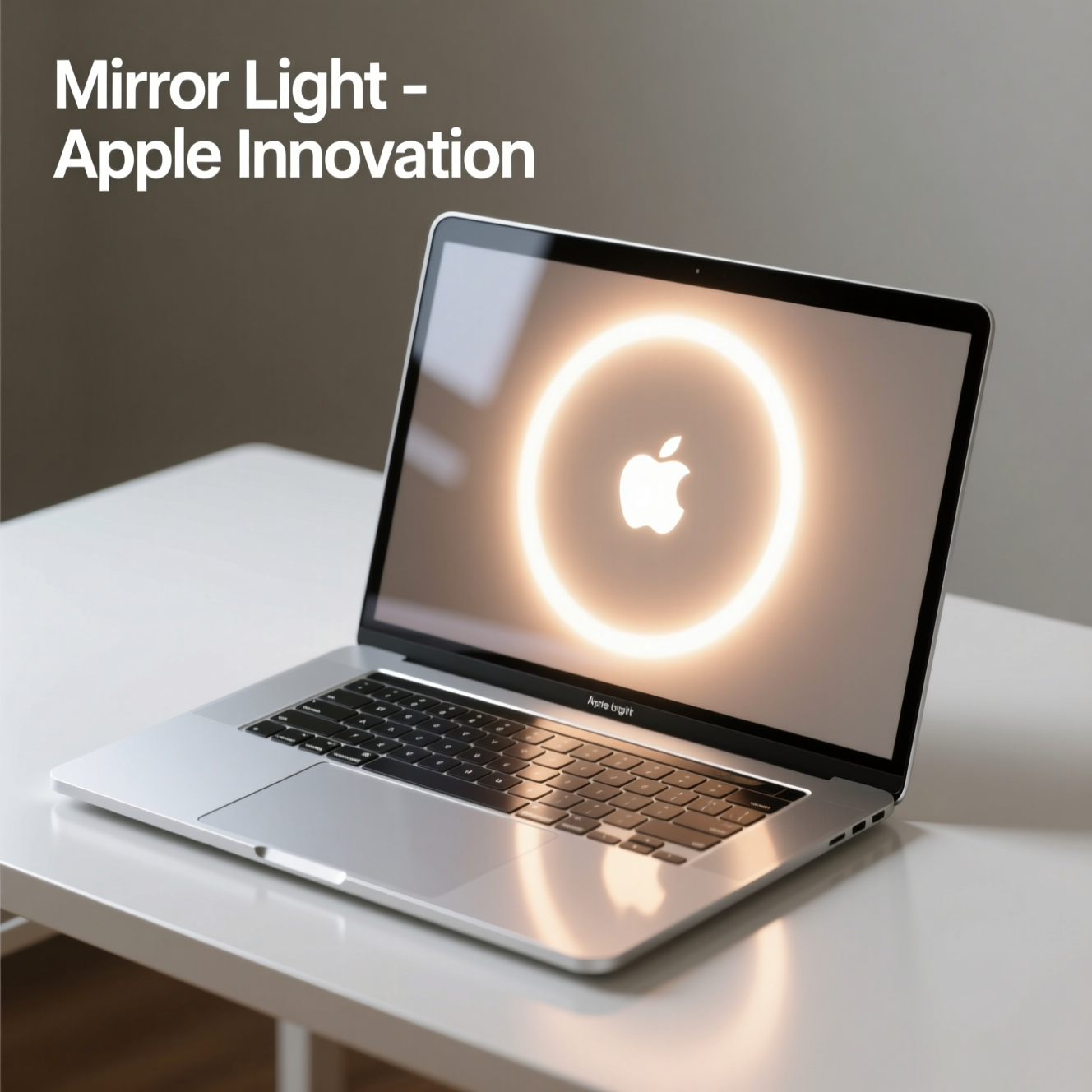
MacBook Edge Light : The Glow-Up You Didn’t Know You Needed
We’ve all been there. You’re two minutes away from a high-stakes Zoom presentation or a long-awaited catch-up with a friend, and you realize the lighting in your room is… suboptimal. You look like a silhouette in a witness protection program, or worse, the overhead fluorescent bulbs are casting shadows that make you look like you haven’t slept since the original iPhone launch.
Traditionally, the fix was bulky: clipping a plastic ring light to your bezel or dragging a desk lamp behind your monitor. But with macOS Tahoe 26.2 ,Apple, in its relentless pursuit of “it just works” elegance, has introduced a game-changer. It is more than just a software tweak; it’s a brilliant repurposing of hardware that turns your high-nit Liquid Retina display into a professional-grade lighting studio.
In this deep dive, we’ll explore how Apple engineered this feature, why it’s killing the external webcam accessory market, and how you can master your glow.
What Exactly is the MacBook Edge Light?

At its core, the Edge Light is an intelligent display mode designed to illuminate the user’s face during video calls. Instead of using the entire screen as a blunt light source (which would wash out the content you’re trying to see), it creates a high-intensity, color-calibrated “halo” around the perimeter of your workspace.
The Physics of the Glow
Apple leverages the massive brightness overhead of the Liquid Retina XDR displays. These screens can hit peak brightness levels of up to 1600 nits. By dedicating the outer 10-15% of the screen real estate to a pure white or warm-toned border, the MacBook projects enough lumens to fill in facial shadows from a distance of 18 to 24 inches.
Software Intelligence
It isn’t just a static white border. Using the Neural Engine, the MacBook analyzes the ambient light in your room via the ambient light sensor and adjusts the color temperature (Kelvin) of the Edge Light to match. If you’re in a warm, lamp-lit room, the border shifts to a soft amber to ensure your skin tones look natural rather than ghostly blue.
Comparison: Edge Light vs. Traditional Ring Lights
For years, the Logitech Litra Glow and various Amazon ring lights have been staples for remote workers. How does the integrated MacBook feature stack up?
| Feature | Built-in Edge Light | External Ring Light |
| Portability | Integrated; Zero extra weight | Requires extra bag space/cables |
| Color Accuracy | Auto-syncs with True Tone | Manual adjustment required |
| Desk Clutter | None | Occupies USB ports or desk space |
| Power Source | MacBook Battery | USB or Wall Outlet |
| Intensity | High (up to 1600 nits peak) | Very High (Professional grade) |
| Price | Included with Hardware | $20 – $150 |
Why This Matters: The Psychology of Video Presence
It might seem like a minor aesthetic upgrade, but the impact of lighting on digital communication is well-documented. Good lighting increases perceived “professionalism” and “trustworthiness” in virtual environments.
When your eyes are well-lit (creating those tiny reflections known as “catchlights”), you appear more engaged. The Edge Light solves the “dead eye” look common in dimly lit home offices, making you appear more vibrant and focused without requiring a studio setup.
How to Enable and Customize Your Glow
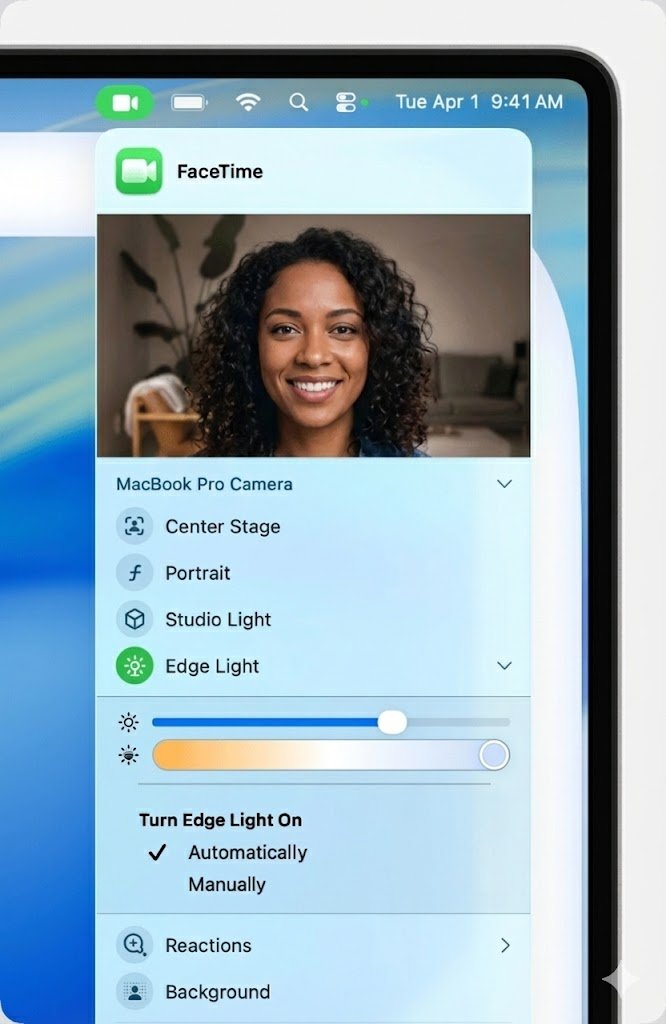
While Apple prides itself on automation, you have significant control over how the edge light behaves.
1. Accessing the Control Center
During any video call (FaceTime, Zoom, or Teams), click the Control Center icon in the menu bar. You’ll see a dedicated “Video Effects” section.
2. Adjusting Intensity
Under the Edge Light toggle, a slider allows you to adjust the thickness and brightness of the light border. If you’re wearing glasses, thinning the border helps reduce the “rectangle reflection” on your lenses.
3. Tuning the Tint
While the system defaults to “Auto,” you can manually slide from Cool (Blue) to Warm (Orange).
-
Pro Tip: Use a slightly warmer tint if you’re feeling tired; it mimics a “golden hour” glow that hides fatigue.
The “Invisible” Innovation: Synergy with Center Stage
The Edge Light doesn’t work in a vacuum. It works in tandem with Center Stage, the feature that uses the Ultra-Wide camera to crop and follow your movement.
Because the MacBook knows exactly where your face is in the frame, it can actually modulate the brightness of specific sides of the screen. If you lean to the left, the right side of the Edge Light can brighten slightly to compensate for the change in angle, maintaining a consistent 3D fill on your face. This is a level of computational lighting that traditional “dumb” ring lights simply cannot match.
Hardware Limitations: Is Your Mac Ready?
Not every Mac supports the full breadth of the Edge Light capabilities. To get the most out of the feature, you generally need hardware capable of high-sustained brightness and the latest silicon processing.
-
Best Experience: MacBook Pro (M1 Pro/Max and newer) with XDR displays.
-
Good Experience: MacBook Air (M2 and newer) – while these lack XDR, their 500-nit panels are still surprisingly effective in dark rooms.
-
Legacy Macs: Older Intel-based Macs may offer a simplified version, but often lack the color-matching “True Tone” integration for the light border.
Practical Use Cases: Beyond the Zoom Call
While video conferencing is the primary driver, we’re seeing creative uses for the feature across different industries:
-
Content Creators: Quickly filming a “talking head” video for TikTok or LinkedIn without setting up softboxes.
-
Digital Nomads: Working in cafes or dimly lit hotel rooms where you can’t control the environment.
-
Online Educators: Ensuring students can see facial expressions clearly, which is vital for non-verbal communication in learning.
Is the Standalone Ring Light Dead?
For the average professional, yes. The convenience of having a color-accurate light source built into your display outweighs the marginal brightness advantage of a cheap clip-on light.
However, professional streamers or those who work in pitch-black environments may still find value in dedicated key lighting. The Edge Light, while powerful, is still a “front-on” light source, which can occasionally appear flat. For the 99%, though, it’s the end of an era for clunky desk accessories.
Summary of Key Insights
-
Integration is King: The feature turns a hardware necessity (the screen) into a functional tool.
-
Computational Lighting: It uses the M-series chip to match your room’s color temperature perfectly.
-
Productivity Boost: Reduces “setup friction” for remote workers—no more hunting for cables before a meeting.
-
Eye Health: By illuminating the area around the screen, it can actually reduce the contrast strain on your eyes in dark rooms.
Conclusion
The MacBook Edge Light is a classic example of Apple at its best: finding a software solution to a hardware problem. By understanding that our screens are often the brightest objects in our rooms, Apple has effectively turned every MacBook owner into their own lighting director. It’s a feature that proves “premium” isn’t just about speed—it’s about how the device makes you look and feel in a digital-first world.
What do you think of the feature? Has it replaced your desk lamp, or do you still prefer a dedicated light setup? Let us know in the comments below!
For more tech updates, stay connected with Calmly Digital and explore what’s new in the world of technology.